Connect your AI agent
Connect in three steps.
With an account and an AI client, you’re connected in under two minutes.
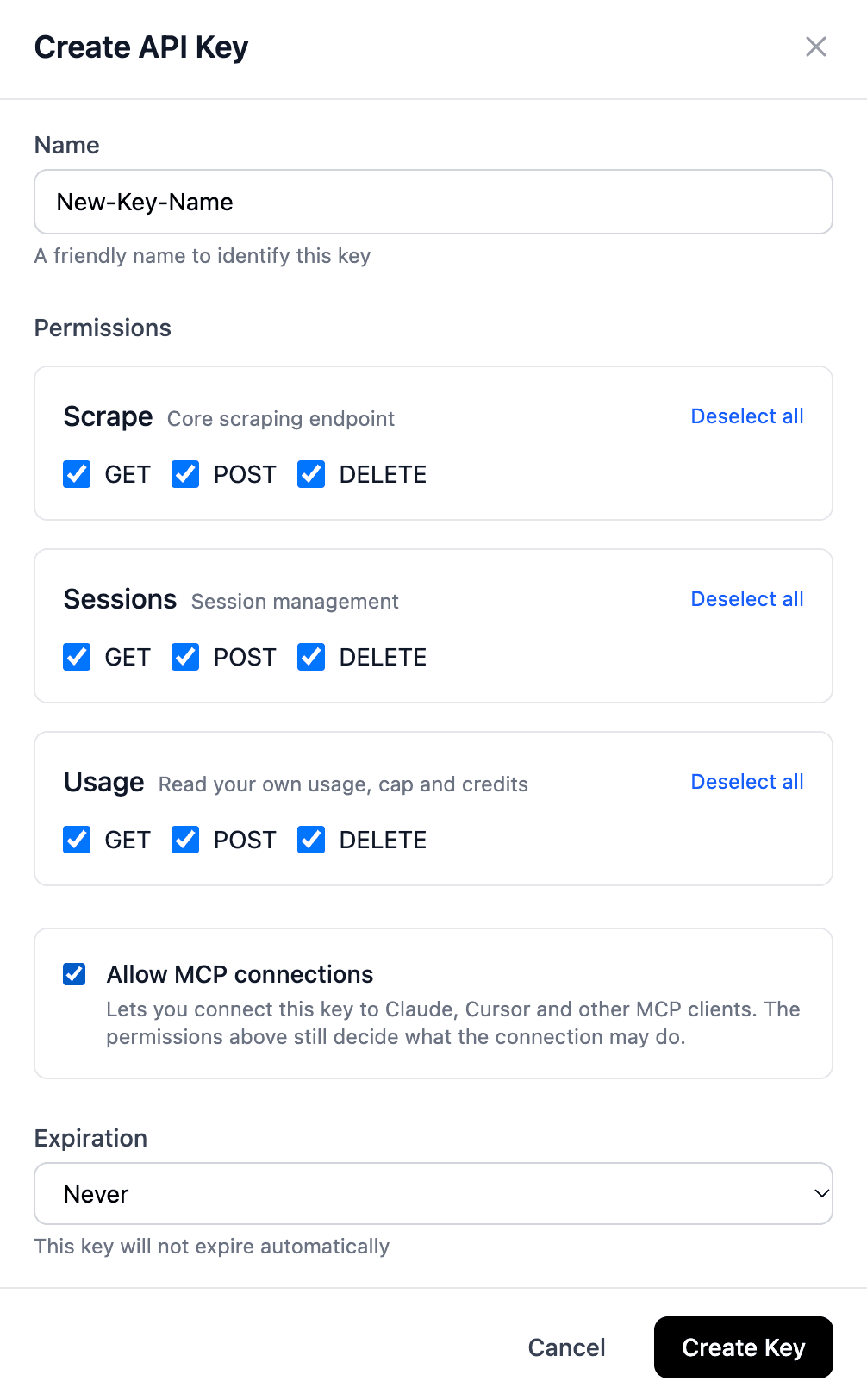
- 1Create an API key with Allow MCP connections ticked.
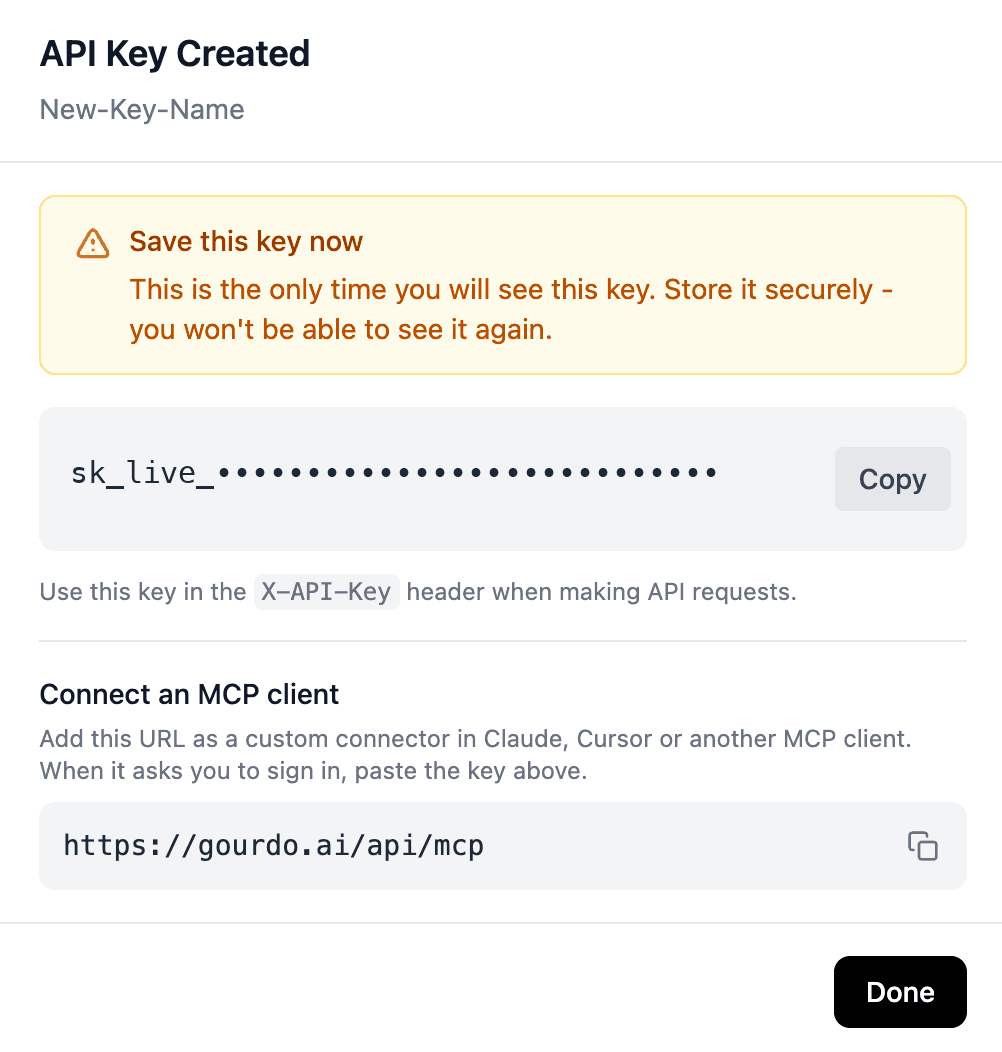
- 2Add this URL as a connector in your client.
- 3Paste the key when Gourdo’s sign-in page opens.
Before you start
You need one API key that is allowed to accept MCP connections.
- 01Dashboard → API Keys → Create Key. Tick Allow MCP connections.
- 02From the API Key Created dialog, copy the key (shown once) and the connector URL.
The one screen every path shares
Gourdo’s sign-in page. Paste the key, approve, done.
Whichever client you use, it ends up here. Check the address bar reads https://gourdo.ai/mcp/authorize, paste the whole sk_live_… string, and click Approve and connect.
The page belongs to Gourdo, not to your AI client. It never sees your client’s credentials, and your client never sees the key.
Gourdo
Connect to Gourdo
An MCP client wants to use your Gourdo account. Paste an API key that has Allow MCP connections turned on. The key’s permissions decide what the connection may do, and every scrape it makes is metered to your account.
API key
Create one on the dashboard under API Keys. The key is checked here and never shown to the client.
You can disconnect at any time by deactivating or deleting the key on the dashboard.
Pick your client
Where to add it, what to enter, the sign-in, how you know it worked.
Claude Code
/mcp. Gourdo is listed.Otherwise, add it from the terminal:
claude mcp add --transport http gourdo https://gourdo.ai/api/mcp
- 01Start a new session and run
/mcp. - 02Choose gourdo, then Authenticate. Your browser opens Gourdo’s sign-in page; paste the key.
You’ll know it worked: the terminal reports Authentication successful. Connected to gourdo.
> /mcp

Manage MCP servers
1 server found

❯ 1. gourdo          ✔ connected

Enter to select · Esc to exit

───────────────────────────────────────
gourdo
URL:       https://gourdo.ai/api/mcp
Transport: http
Status:    ✔ connected
Tools:     13

Authentication successful. Connected to gourdo.
claude.ai, Claude Desktop, and Cowork
One connector serves all three.
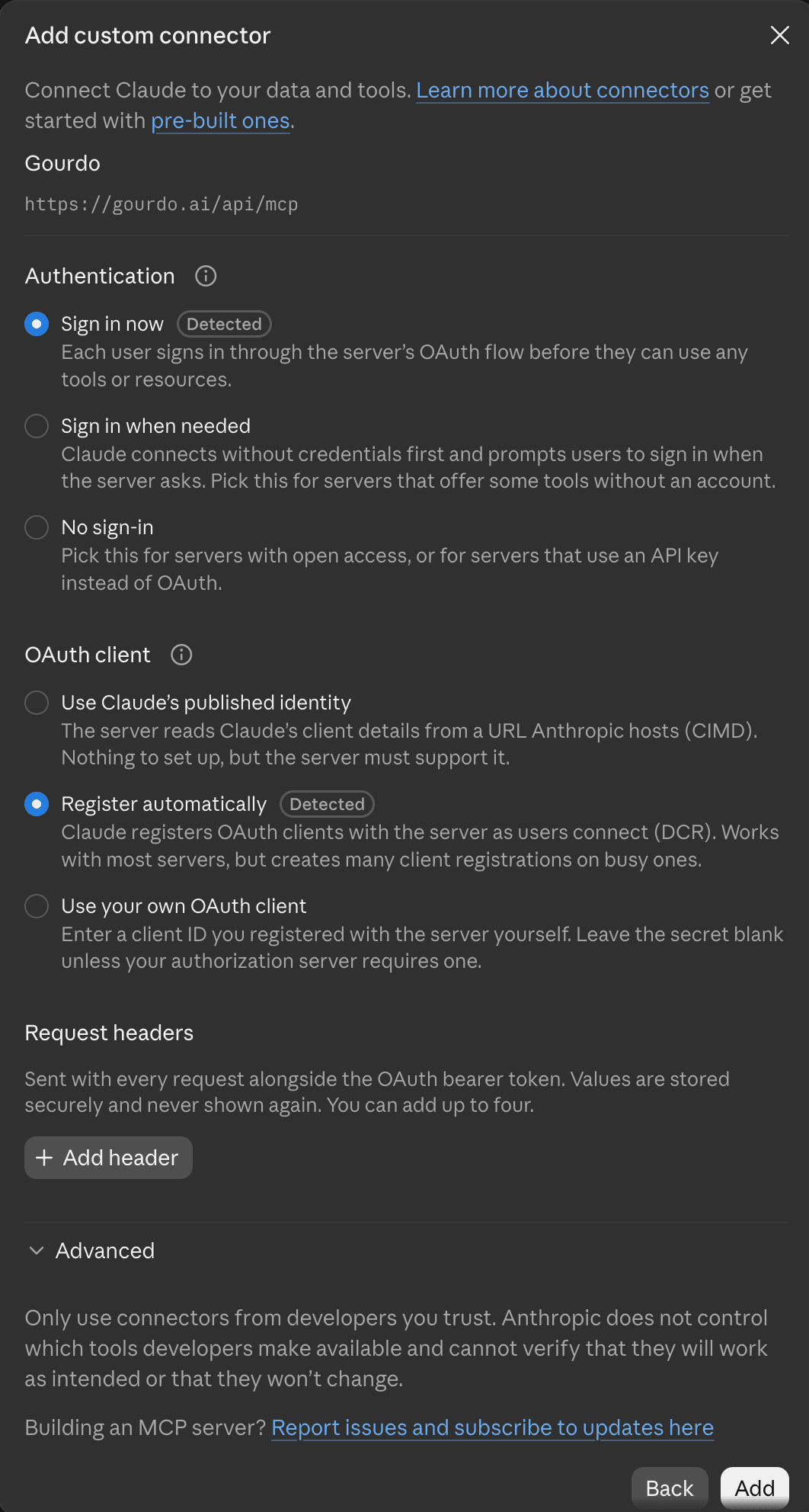
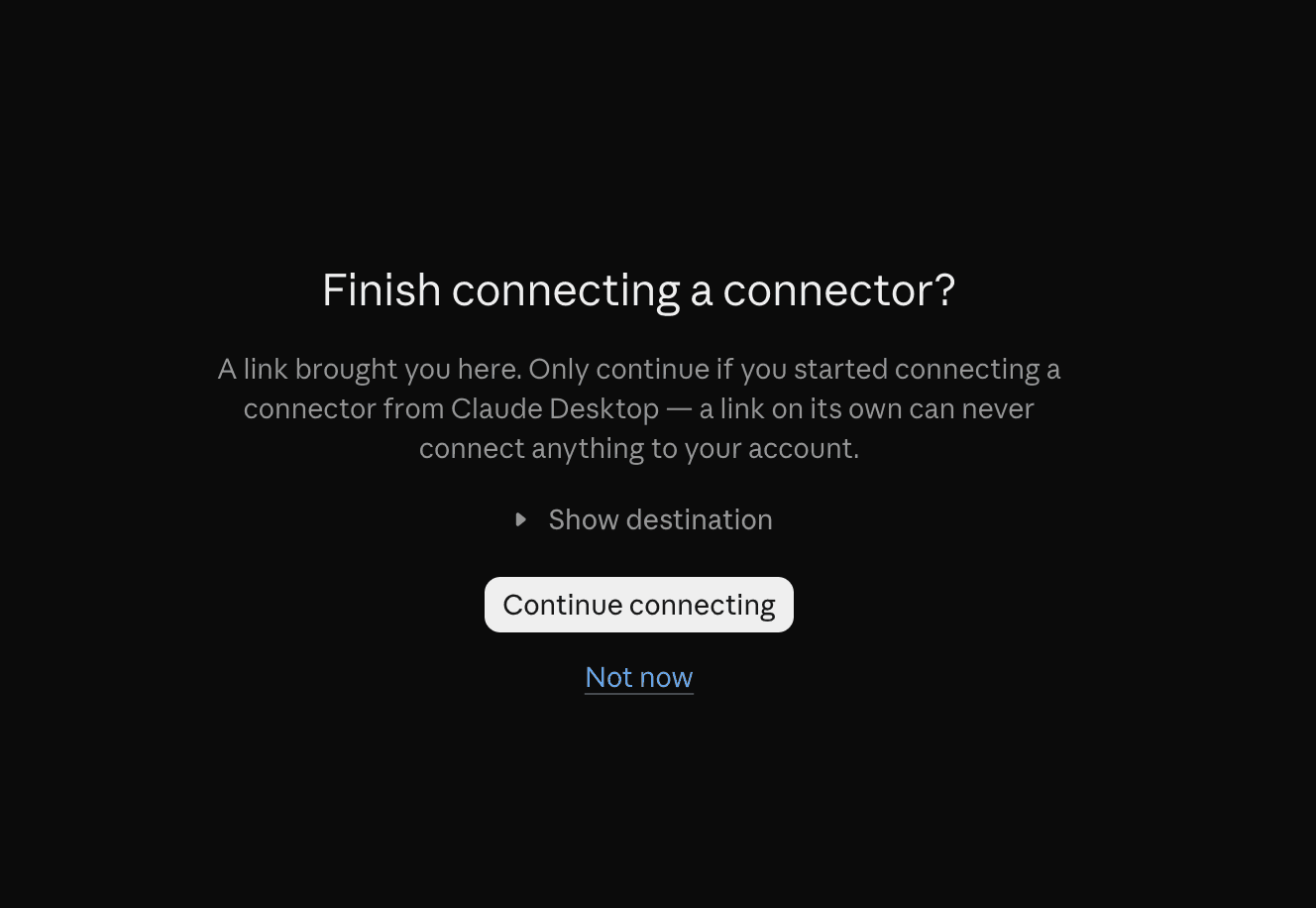
https://gourdo.ai/api/mcp. Leave Sign in now and Register automatically selected (Claude detects them). No request headers. Click Add.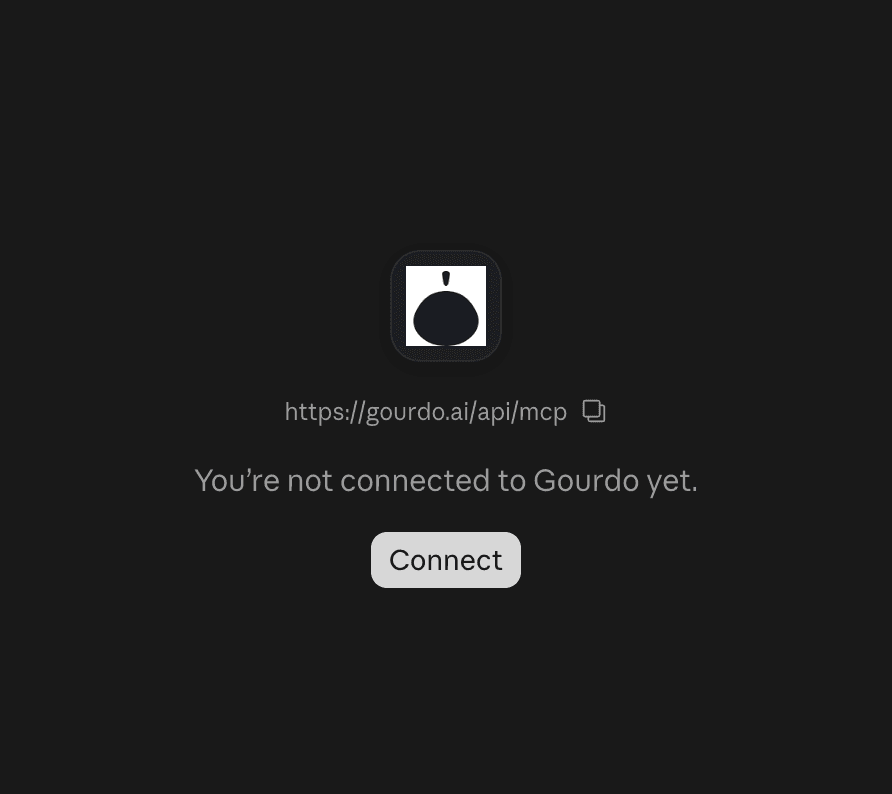
Cursor
Add to ~/.cursor/mcp.json (or .cursor/mcp.json in a project), or use Settings → Tools & MCP → Add Custom MCP:
{ "mcpServers": { "gourdo": { "url": "https://gourdo.ai/api/mcp" } } }Restart Cursor. On first use it opens Gourdo’s sign-in page in your browser; paste the key.
You’ll know it worked: Gourdo’s tools appear under the server in Settings → Tools & MCP.
ChatGPT
Settings → Connectors → Advanced settings → turn on Developer mode (Plus, Pro, Team/Business, Enterprise and Edu plans).
Create: name Gourdo, URL https://gourdo.ai/api/mcp, Authentication OAuth, leave client ID and secret blank. Complete the sign-in on Gourdo’s page.
In a chat, pick Gourdo from the tools menu.
You’ll know it worked: Gourdo is listed under Connectors with its tools, and appears in the chat’s tools menu.
VS Code (GitHub Copilot)
Command Palette → MCP: Add Server → HTTP → https://gourdo.ai/api/mcp. Or in .vscode/mcp.json:
{ "servers": { "gourdo": { "type": "http", "url": "https://gourdo.ai/api/mcp" } } }VS Code opens the browser for sign-in; paste the key. Tools appear in Copilot Chat’s Agent mode.
You’ll know it worked: the server shows as running above its entry in mcp.json, and Gourdo’s tools are in Agent mode’s tool picker.
Gemini CLI
Add to ~/.gemini/settings.json:
{ "mcpServers": { "gourdo": { "httpUrl": "https://gourdo.ai/api/mcp" } } }Sign-in opens on first connect; if it does not, run /mcp auth gourdo.
You’ll know it worked: /mcp lists gourdo as connected with its tools.
Any other MCP client
Add a remote server by URL, https://gourdo.ai/api/mcp, and choose sign-in / OAuth when asked. Gourdo’s sign-in page opens; paste the key.
Done
Your agent now has Gourdo’s tools.
Pages as Markdown, HTML, elements, links, metadata, screenshots and PDF; sessions; and your usage and balance. Full list in the docs.
To disconnect, deactivate or delete the key on the dashboard.

Having trouble?
Still stuck? hello@uelabs.ai